
Featured images
The image at the top of each post and in link previews: cards and illustrations, making a new one, uploading your own, alt text, and what each platform gets.
Every article comes with a featured image: the picture at the top of the post and in previews when it's shared on social media, in Slack or in messages. It's made in your site's colours with the title drawn on, so the words are always spelled right.
Two styles
- Illustration (the default): the title beside an illustration of the topic. Writing Studio picks one illustration style for your site, so every post matches.
- Card: the title with a small card of the article's key facts, like a checklist, a comparison or a price, in your site's colours and font.
Illustrations never show text, logos or people, and they aren't made to look like photos.
To switch, open the site's page and under Publishing choose Card or Illustration next to Featured images. New images use it; existing ones stay as they are (make a new one to change them).
Change an article's image
Open the article. Under the image:
- New image: makes a new one from the article as it is now, in the site's style.
- Upload: your own image. PNG, JPG, WebP or GIF, up to 8 MB.
- Link: an image already online, like one in your media library. Its address has to start with https.
- Remove: no featured image.
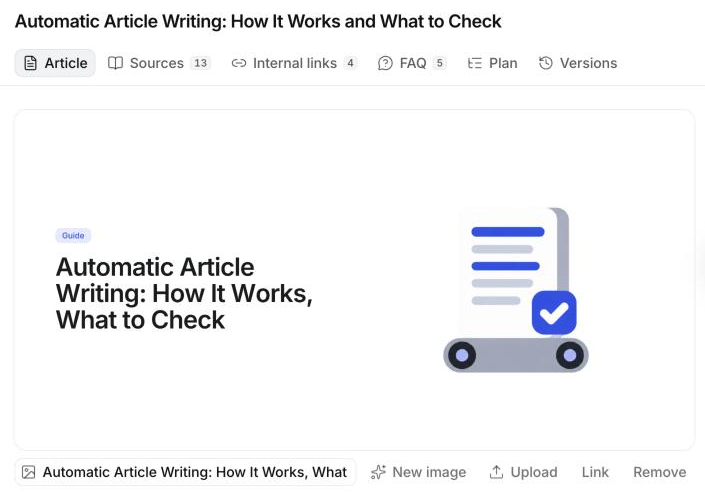
You can make or upload up to 40 images a day. Rewriting an article keeps its image; choose New image if the title changed.
Alt text
Alt text describes the image for screen readers and search engines. Writing Studio writes it for images it makes; for an uploaded image it starts as the article's title. Edit it in the box beside the buttons. Keep it short and say what the image shows.
Size
Images are made at 2400 × 1260 pixels: the 1.91:1 shape link previews use, at twice the size for sharp screens. If you upload your own, use the same shape so nothing important is cropped.
What each platform gets
| Platform | The featured image |
|---|---|
| WordPress | Uploaded to your Media Library with its alt text and set as the post's featured image |
| Webflow | Set in your collection's image field, with its alt text |
| Framer | Set in your collection's image field, with its alt text |
| Shopify | Set as the article's image, with its alt text |
| Ghost | Uploaded to Ghost and set as the post's feature image, with its alt text |
| Next.js | In the content API as image.url and image.alt |
| Webhooks, Zapier and Make | In the payload as post.image.url and post.image.alt |
The screenshots and cards inside the article are copied into WordPress, Webflow, Framer, Shopify and Ghost too, so your posts don't depend on Writing Studio to show them. For which field gets the image on Webflow and Framer, see their setup guides.
Can’t find what you need? Email us.