
Google Search Console
Connect Google Search Console so your plan starts from searches you nearly win already, and see what each post brings in. Read-only.
Google Search Console is Google's free tool that shows which searches your site appears for, where it ranks and how often people click. Writing Studio only reads it; it never changes anything.
What it's used for
- Your plan: topics start from searches where you're already at positions 5 to 20 and questions people ask, so a focused post has a real chance to move up. Searches a page of yours already covers become refreshes, not new posts.
- Posts to update: the posts losing clicks. See Refreshes.
- Results: what your site and each article bring in. See Results.
Without it, Writing Studio plans from your site, your competitors and keyword research. It's included on every plan, Free too.
What you need
- A Google account that can see your site in Search Console, as an owner or a user
- The site added to Search Console and verified. A Domain property is best: it covers every version of your address (with and without www, http and https)
New to Search Console? Add your site there first, verify it (Google walks you through it), and come back. It can take a few days before Google has numbers.
Connect
You're asked when you add a site, while Writing Studio reads it. To connect later:
Open Integrations (or the site's page, Connections) and find Google Search Console under Search data.
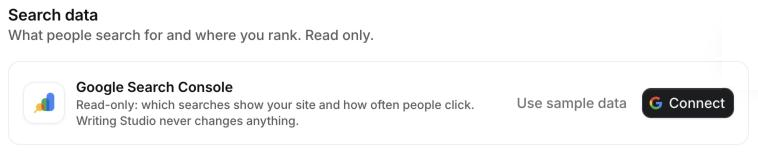
Choose Connect and sign in with the Google account that sees your site.
Google asks to let Writing Studio view your Search Console data. Leave the box ticked and choose Continue.
Back in Writing Studio, pick the site's Property. Writing Studio picks your site's own property if it finds one: the Domain property first, then a URL-prefix one.
Choose Use this property.
Writing Studio fetches your numbers straight away. To plan the topics you haven't started from your own searches, choose Plan again on the Calendar.
Change the property or the Google account
Each site reads one property. Choose Change on the Search Console card, pick another and save. If you pick a property for a different site, Writing Studio warns you: its searches would plan this site's posts.
To use a different Google account, choose Change, then Use another account, and sign in with it. Writing Studio gives the old account's access back to Google. Your account has one Google connection, shared by all your sites; each site still picks its own property.
Sample data
Not ready to connect? Use sample data fills Home and the site's page with sample numbers so you can see how it looks. They're marked Sample data and never feed your plan.
If it won't connect
- "Search Console access wasn't ticked": Google's consent screen has a box for Search Console. Connect again and leave it ticked.
- "has no Search Console property for your site": the Google account you used can't see this site. Add it in Search Console, ask the site's owner to add you as a user, or connect with the account that can.
- "That took too long": the Google sign-in has to finish within 30 minutes. Connect again.
- "Your Google connection has expired": you (or your company's Google admin) removed Writing Studio's access. Connect again.
- "This Google account can't read that Search Console property": your access to the property was removed. Ask its owner to add you back, or pick another property.
Disconnect
Choose Disconnect on the Search Console card. Writing Studio removes its access from your Google account and stops reading Search Console for every site; plans then come from your site and keyword research. You can connect again any time.
You can also remove Writing Studio from your Google account at myaccount.google.com/connections.
Can’t find what you need? Email us.